
Chapter 11 · 11.2
Creating notes and using them on your phone
With the Notes app you can quickly jot something down: a shopping list, ideas, minutes. Your notes are stored in your own Nextcloud and are always the same on your phone and computer. Notes is included in every WebOké package.

Creating a note
- Open Notes from the app menu.
- Click New note (1).
- Type your text (4). The first line becomes the title of the note. Saving happens automatically.
You can use formatting: bold, headings, lists and checkboxes. For example, type - and a space for a bullet list, or # and a space for a heading. The buttons at the top do the same thing. To see what's possible, click Create a sample note with Markdown on the Notes home page.
Organising with categories
Your categories (2) are shown on the left, like folders. The folder icon with a plus sign next to Categories creates a new category. You put a note into a category using the three dots next to the note in the list and Change category. All notes shows everything; Uncategorised shows notes without a category.
Use the Search for notes field (3) to quickly find a note. Use the same three dots to choose Add to favourites; favourites appear at the top.
Tip: Zen mode in the bottom left hides everything except your text. Handy for writing without distractions.
Where are your notes stored?
Each note is a plain text file (.md or .txt) in the Notes folder in Files. Each category is a subfolder, such as Union (1). This means you can also share notes, restore them from Deleted files, or revert to an older version, just like with other files. See Recovering a deleted file from Deleted files and Restoring an older version and naming versions.

Under Notes settings in the bottom left, you can choose how you view your notes (Rich text, Plain text or Preview), whether new notes become .md or .txt files, and which folder they're stored in (Notes folder).
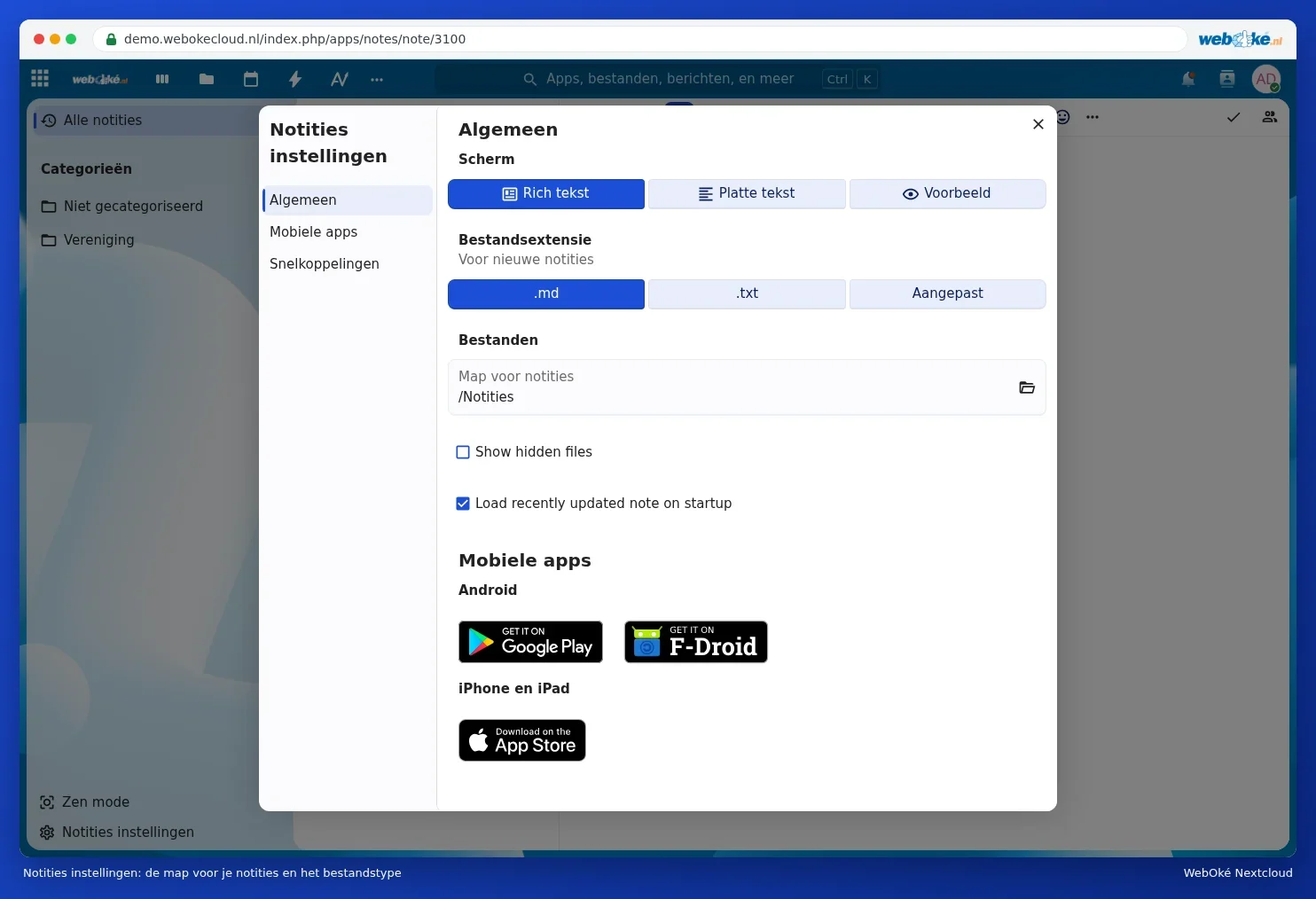
Notes on your phone
Install the Nextcloud Notes app. Under Notes settings, Mobile apps, you'll find buttons to Google Play and F-Droid (Android) and the App store (iPhone and iPad).
- Open the app and choose to log in with your Nextcloud.
- Enter your Nextcloud's address. On Android, you can also select the Nextcloud app's account if it's already set up on your phone.
- Log in with your username and password and the code from the e-mail or your authenticator app. You don't need to create an app password.
Your notes appear in the app straight away. Anything you write on your phone appears in the browser within a few seconds, and vice versa. You can also write without an internet connection; the app will sync as soon as you're back online. More about apps on your phone in Talk, Notes and Deck on your phone.
Please note: don't edit the same note on two devices at once without an internet connection. If you do, Nextcloud won't be able to tell which version is correct. If needed, restore an older version via Files.