
Chapter 9 · 9.15
Adding your mailbox to the Email app
With the Email app, you read and write your email in your WebOké Nextcloud, alongside your files, calendar and contacts. Your Nextcloud is not a mailbox itself: you connect your existing mailbox, for example from your WebOké hosting package or Email Only package. Mailboxes from other providers work too.
Tip: don't have your own email address on your own domain name yet? With an Email Only package from WebOké, you get a mailbox that you connect here.
Connecting automatically
- Open the Email app in the bar at the top. The first time, you'll see Connect your mail account.
- Leave the Automatic tab (1) open.
- Check your name and enter your Email address (2) and the Password of your mailbox (3). This is the password of the mailbox itself, not the one for your Nextcloud.
- Click Connecting (4). Your Nextcloud will look up the right settings itself.

For most mailboxes at WebOké, this works straight away. If it doesn't work, use Manually.
Connecting manually
Click the Manually tab and fill in the details. For a mailbox at WebOké:
| Field | What do you enter? (mailbox at WebOké) |
|---|---|
| IMAP Host | Your domain name, for example yourdomain.com (see the note below) |
| IMAP security | SSL/TLS |
| IMAP port | 993 |
| IMAP username | Your full email address |
| IMAP password | The password of your mailbox |
| SMTP host | Same as the IMAP host |
| SMTP security | STARTTLS |
| SMTP port | 587 |
| SMTP username and password | Same as for IMAP |

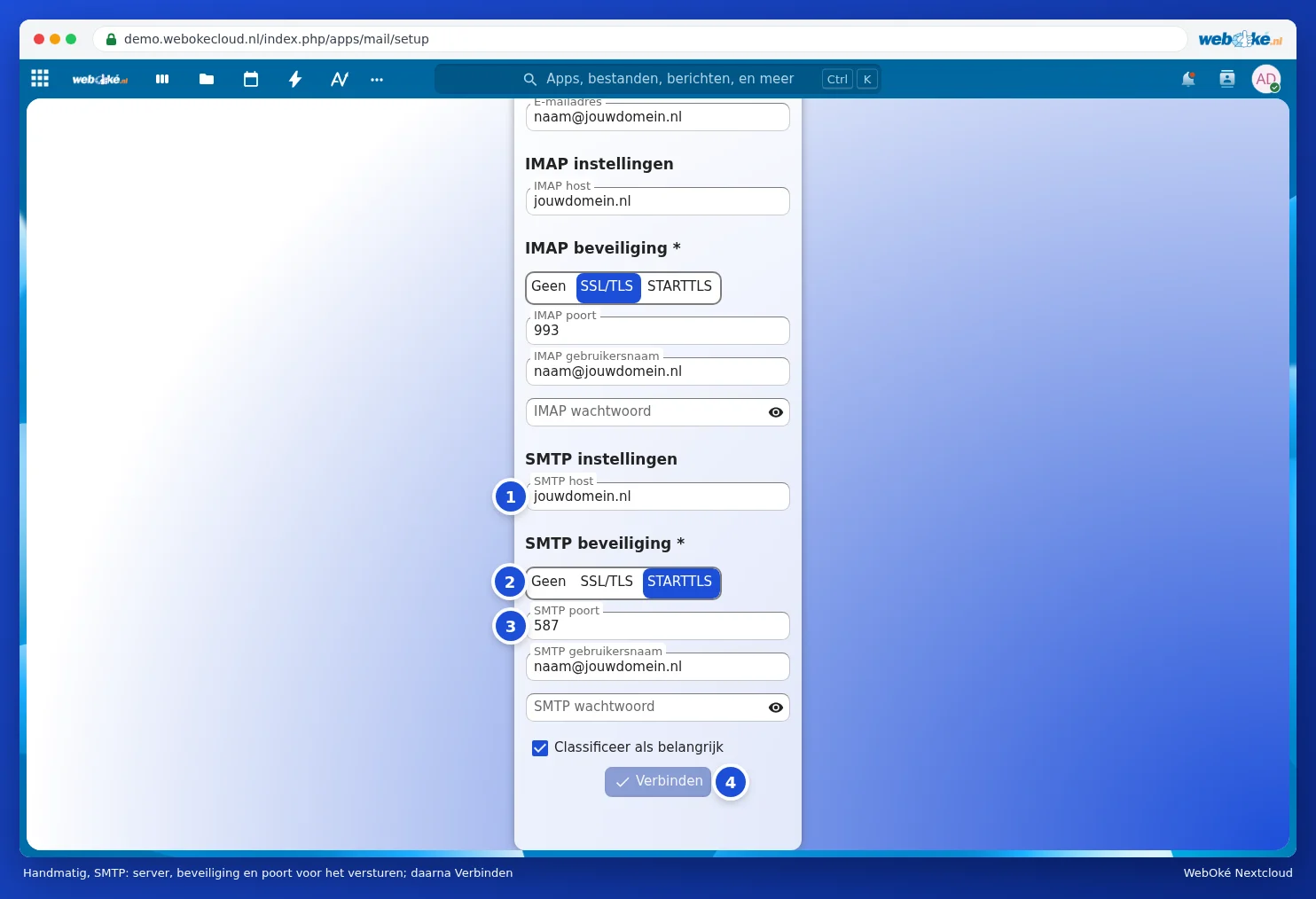
Please note: does your domain's DNS not point to WebOké, for example because your website is hosted elsewhere and you only have an Email Only package with us? Then the domain name won't work as the host. In that case, enter the server name of your mail package instead. You'll find it in the email you received when you purchased the package, and it looks like linux2410.webawere.nl.
With another provider (Gmail, Outlook.com, KPN, Ziggo), you'll find the IMAP and SMTP details on that provider's website. Gmail and Outlook.com often require a separate app password from their end.
After connecting
Your Nextcloud now retrieves your mail. For a large mailbox, this may take a while the first time; you can simply carry on in the meantime. You can read how to work with the app in Reading and writing mail, folders and saving attachments to Files.
Adding a second mailbox, or removing a mailbox
Want to add another mailbox? Click Email settings at the bottom left and choose Add mail account. Via the menu with the three dots next to your account in the left-hand column, you'll find the Account settings (including your Signature), and you can remove the account again with Remove account. This only removes the connection; your mail simply stays in your mailbox.
