
Chapter 12 · 12.3
Sharing an album with family or friends
Watch it in a short video
You can share an album with people in your Nextcloud, so they see it in their own Photos app, or with anyone via a link. This way you can show your holiday photos to the family without emailing them or posting them on social media.
Sharing with someone in your Nextcloud
- Open the album in Photos and click the share button in the top right corner (Manage collaborators for this album), next to Add photos to this album.
- The Add collaborators window opens. Under Search people or groups, type a name and click the person or group.
- Click Save (2).


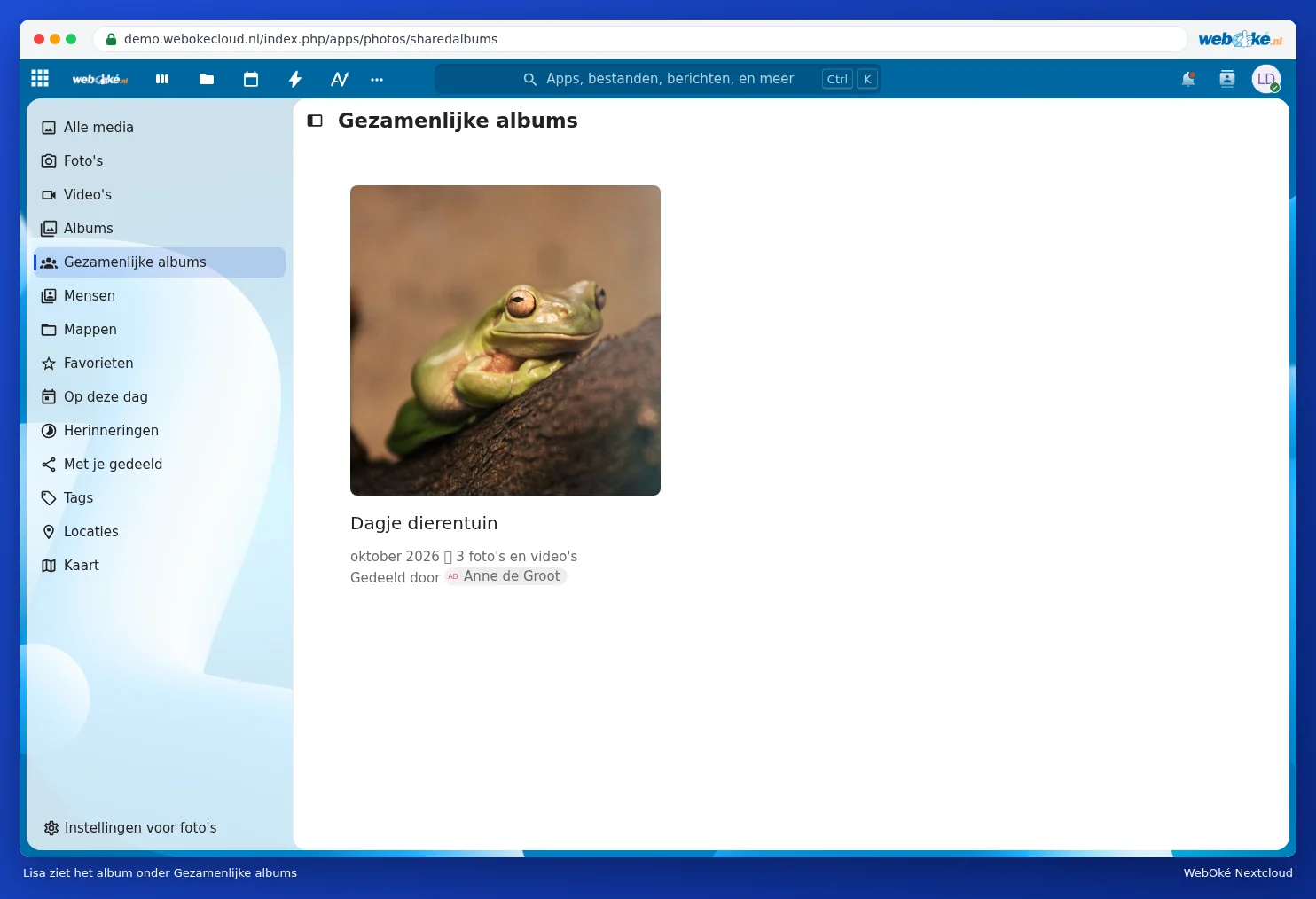
The other person sees the album in Photos under Collaborative albums, along with who shared it. Collaborators can not only view the album but also edit it: they can add their own photos to it. Handy after a family gathering, where everyone adds their own photos.
Sharing via a link
In the same window, click Share via public link (1). Anyone with the link can view and download the photos, even without an account. Copy the link and send it to whoever you want. If you no longer want to share it, delete the link in the same window.
Please note: anyone who has the link can see and forward the photos. Only share a link with photos of children or other private photos with people you trust.
Prefer to share a folder?
You can also share the folder containing photos from Files. This is handy if others need to add their own photos, for example after a family gathering: share the folder with editing rights, or create a file request. See Sharing with a user from your own Nextcloud, Creating a public link: viewing, editing, password, expiration date and download limit and Having files sent to you: file drop and file request. A shared folder with photos counts towards the owner's storage, see Anyone using shared files uses your storage.
Tip: does a video in a shared album not play for the other person? Then share the folder with the video via Files, or let the other person download the video.