
Chapter 4 · 4.5
Creating notes and text files with Text
For short texts, minutes, lists and plans, you don't need a word processor. The Text app is included in every WebOké Nextcloud package and saves your text as a markdown file (.md). That's plain text with a bit of formatting, which you can open anywhere.
Creating a new text file
- Go to the folder where the file should be created.
- Click New and choose Text document.
- Type a name and confirm. The file opens straight away.
Working in Text
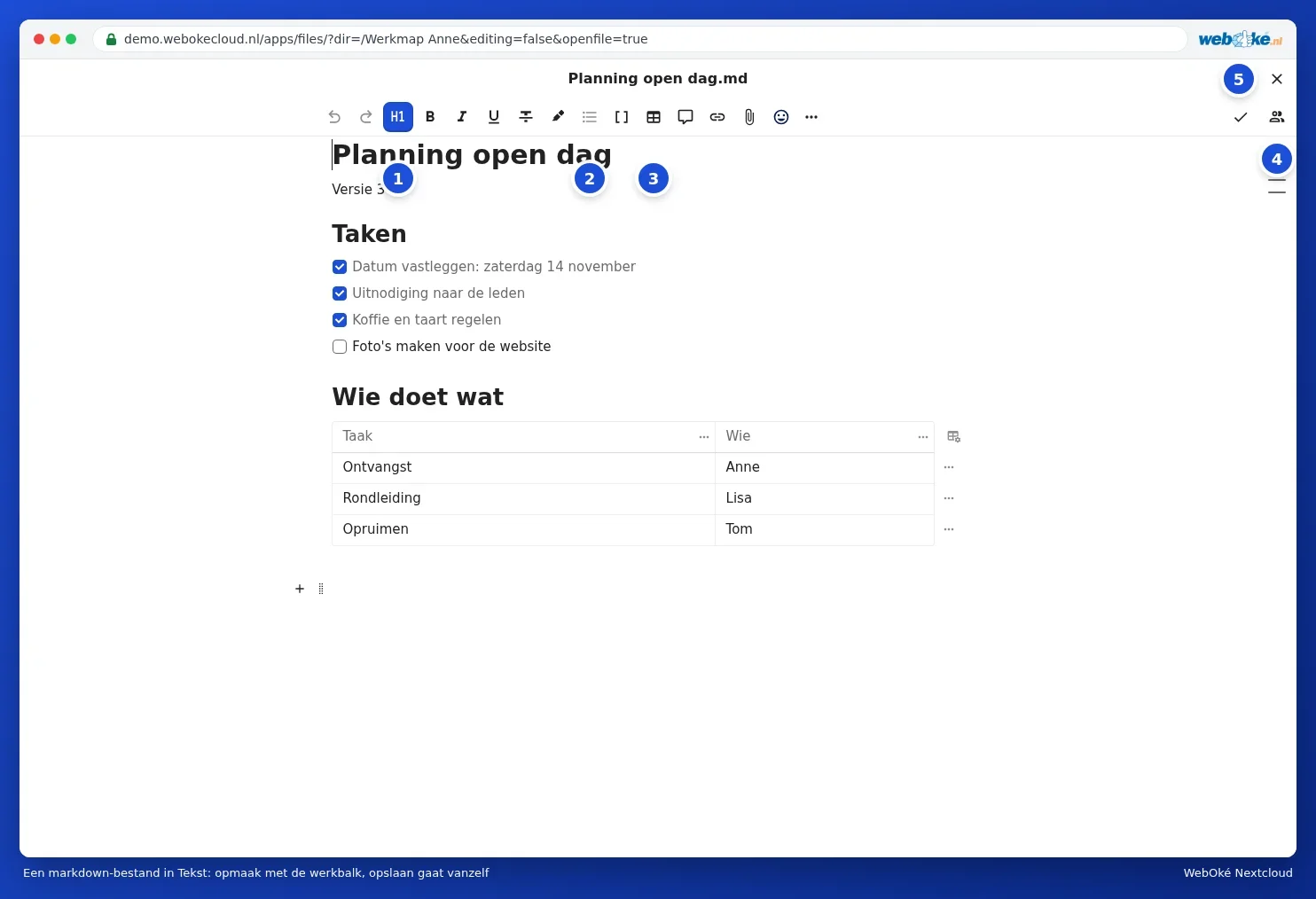
- With the Headings button (1), you turn a line into a heading.
- With Lists (2), you create a bulleted list, a numbered list or a checklist with ticks.
- With Table (3), you insert a table.
- If someone else is working in the same file at the same time, you'll see that person among the active users (4) and see their changes appear straight away.
- With the cross (5), you close the file.
There's no need to save: Text saves your changes automatically. Every saved state is added to the file's version history, so you can always go back (see Restoring an older version and naming versions).
Keyboard shortcuts and quick formatting
- Ctrl + B for bold, Ctrl + I for italic (on Mac, Cmd).
- Type # at the start of a line for a heading, - for a bulleted list and 1. for a numbered list.
- Type / on an empty line for a menu with everything you can insert.
Folder description
Via New and Add folder description, you add a short text to the top of a folder, for example what belongs in it or who manages it. Everyone you share the folder with also sees that text.
Office documents
Via New, you can also create a New document, a New spreadsheet, a New presentation or a New PDF form. These open in Euro-Office and require an Office licence. You'll find everything about that in the Euro-Office manual.
Tip: for standalone notes that you'd also like on your phone, there's the Notes app (Creating notes and using them on your phone). It saves your notes as files in your Nextcloud too.