
Chapter 15 · 15.24
Removing comments and changes before sending a document
In a document the team has been working on, you'll often find comments ("is this price correct?") and tracked changes. If you send it to a client like this, they'll see everything. Here's how to clean up the document.
Step 1: process all changes
- Go to the Collaboration tab.
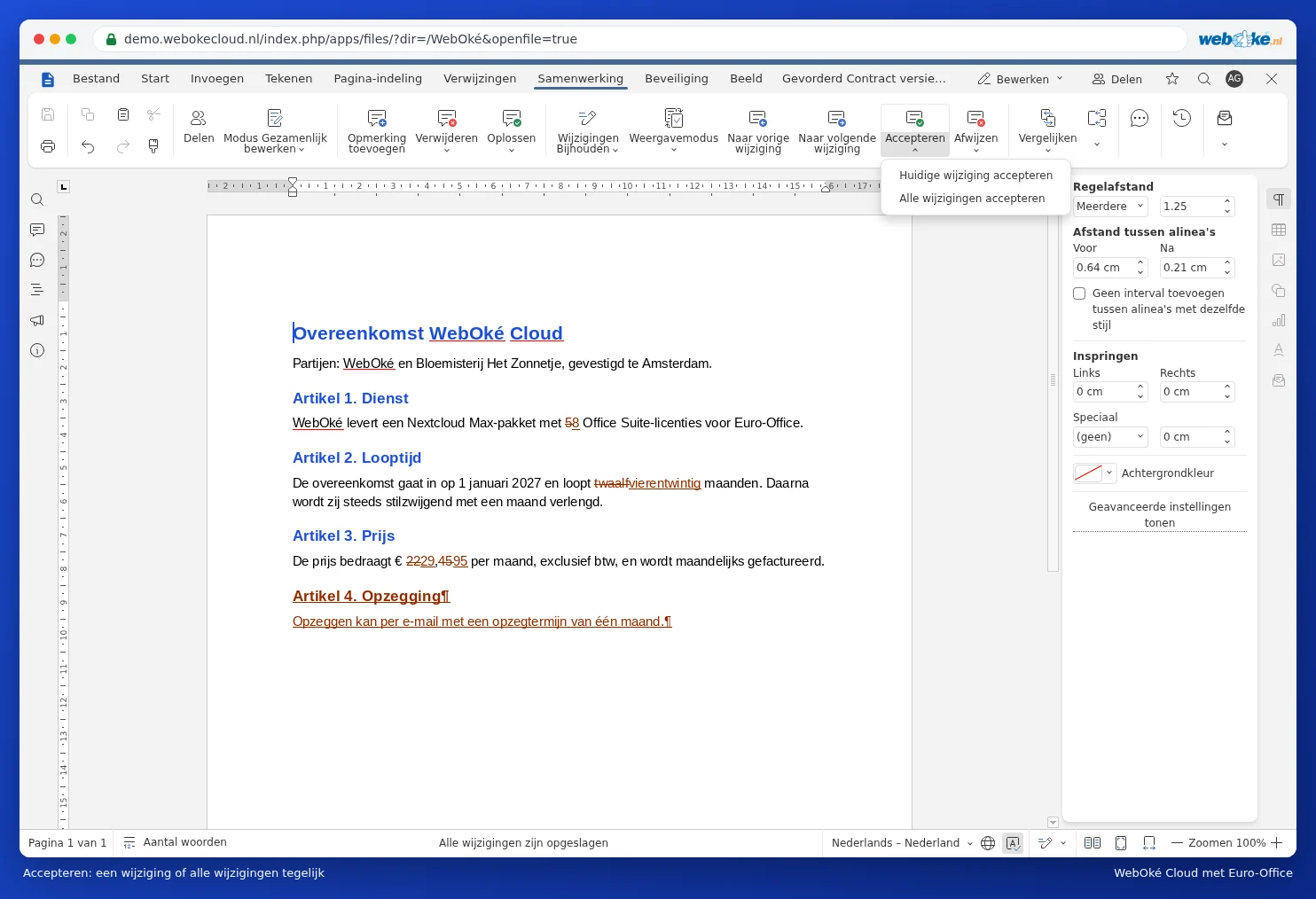
- Click the arrow next to Accept and choose Accept all changes. If you'd rather not keep them, choose Reject all changes under Reject.
- Turn off Track Changes so no new ones are added.
Step 2: delete comments
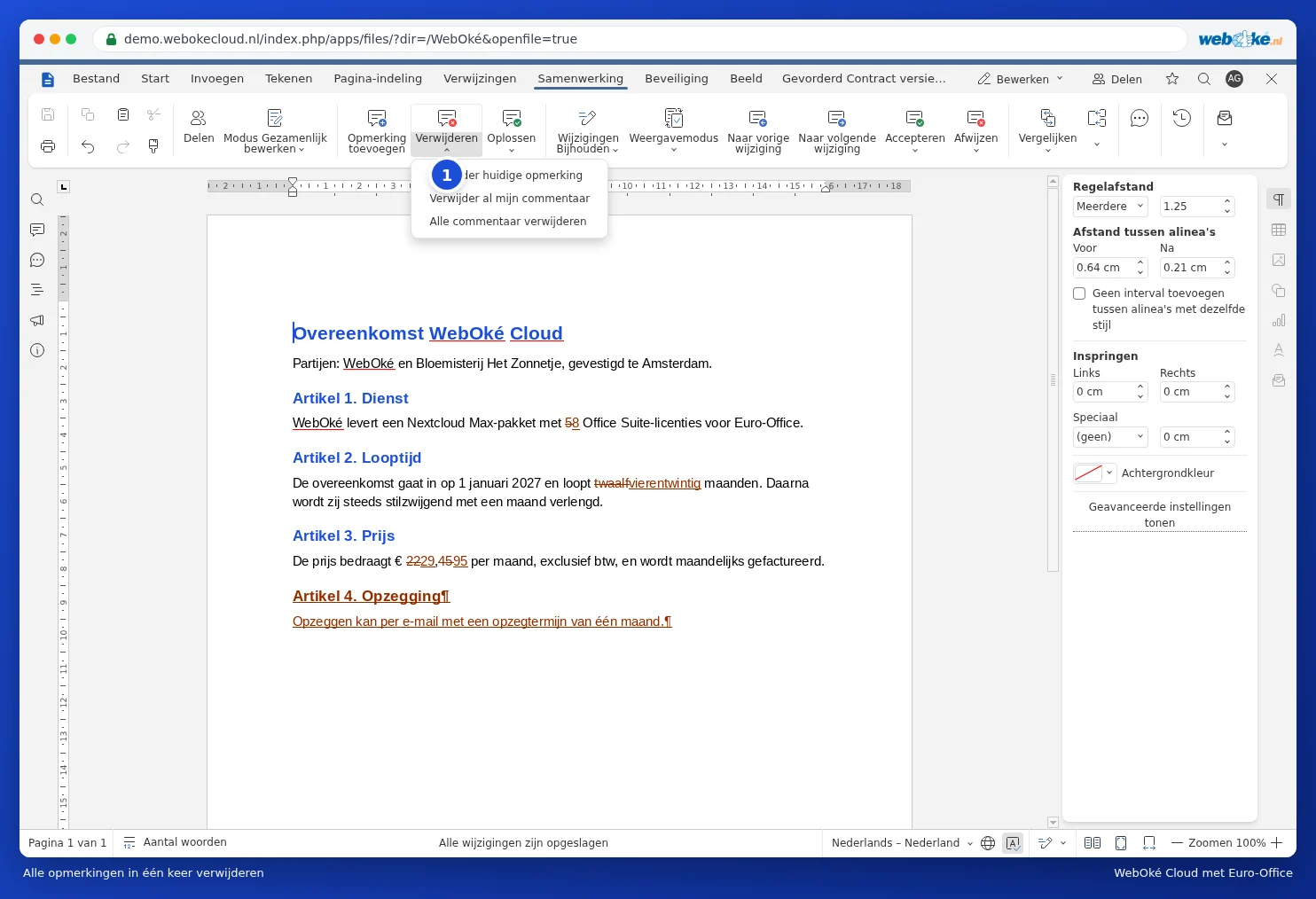
On the Collaboration tab, click the button to delete comments (1) and choose Delete all comments. To remove only your own comments, use Delete my comments.
Step 3: check your work
Under Display Mode, choose Final and read through the document one more time. Also open the comments panel on the left to check it's empty.
Even safer: send a PDF
Want to be absolutely sure nothing gets left in and that the client can't make changes? Send a PDF: go to File, Download as and choose PDF. Or use Save copy as to create a PDF in your Nextcloud and share it with a link.
Pitfalls
- Deleted comments are gone from the document. If you want to keep them, make a copy first.
- An older version with all the comments is still stored in the file's version history. If you share the file itself with the client, they'll be able to access it with editing rights. So share a copy or a PDF instead.