
Chapter 13 · 13.3
Managing users and groups for Office
As an administrator, you decide who works in your WebOké Nextcloud and who can work with Euro-Office. You do this in Mijn WebOké, under Gebruikersbeheer of your Nextcloud package.
How the Office Suite licence works
An Office Suite licence in Nextcloud is a membership of the office group. Only members of that group can open files in Euro-Office. If you switch on Office Suite in Gebruikersbeheer, we add the user to that group. If you switch it off, we remove them and the licence becomes available again.
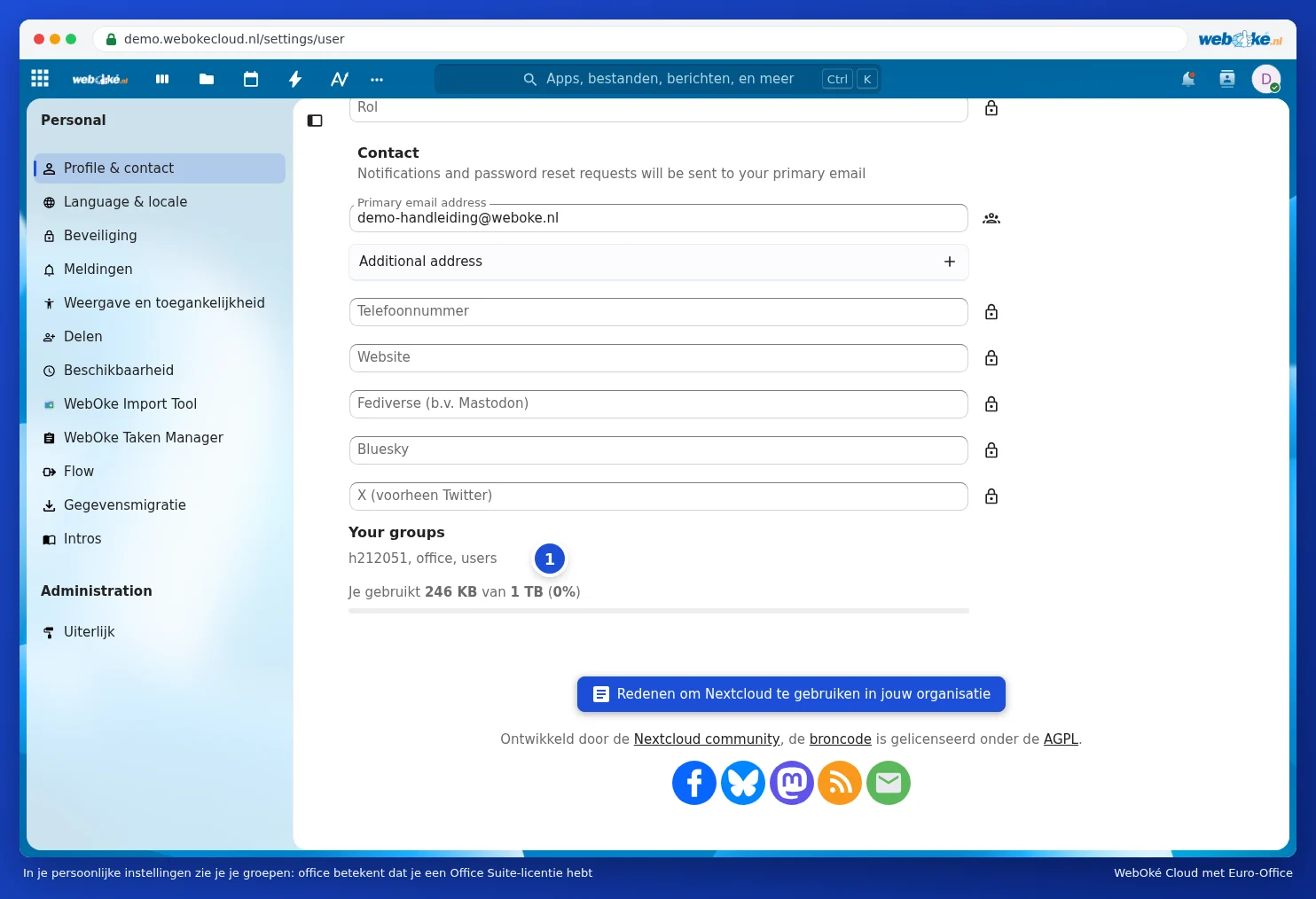
Every user can check for themselves whether they have a licence. In Nextcloud, click your profile photo in the top right and choose Settings. At the bottom of the Profile & contact page, under Your groups, you'll see which groups you belong to. If office is listed there (1), you have an Office Suite licence.
Please note: always assign Office via the switch in Mijn WebOké, not by adding someone to the office group in any other way. Only then will your licence count be accurate.
Adding a user
- In Mijn WebOké, go to Mijn Producten, click Beheer next to your Nextcloud package and scroll to Gebruikersbeheer.
- Click Gebruiker toevoegen.
- Fill in the Gebruikersnaam. The user will log in with this. Use lowercase letters, numbers, a full stop or a hyphen. You can't change the username afterwards.
- Fill in the Weergavenaam and the Email Address.
- Choose a Password of at least 10 characters, with at least one number and one special character, or click Genereer. Share the password securely with the user.
- Does the user need to work with Euro-Office? Tick Office Suite-licentie toewijzen.
- Click Gebruiker aanmaken.
Have you reached the maximum number of users or licences for your package? You'll receive a notification about this. Increase the number under Configureerbare opties, see Ordering and assigning Office licences to users.
Managing a user
In Gebruikersbeheer, you can see for each user whether they're active, whether they have Office Suite and when they last logged in. The actions menu next to a user lets you choose:
- Wachtwoord wijzigen: for example, if someone has lost their password.
- Edit data: change the display name or email address.
- Uitschakelen and Inschakelen: temporarily deny someone access without deleting anything.
- Delete: permanently delete the user.
Please note: with Delete, all of that user's files, calendars and contacts are permanently deleted. This can't be undone. So first move any important files elsewhere, for example by sharing them with a colleague who copies them to their own folder.
Someone leaves or no longer needs Office
- Does someone no longer need Euro-Office, but still need Nextcloud? Then just switch off Office Suite. The licence becomes available for someone else.
- Is someone leaving? Disable the user first. Only delete them once you're sure all their files are safe.
Working together in groups
Do you want a team to work together on the same documents? Create a shared folder and share it with the colleagues who need to work in it. Everyone with an Office Suite licence can then open and edit the documents in that folder together in Euro-Office. You can read how sharing works in Een document delen met een collega. You can read how to work on a document at the same time in Tegelijk aan een document werken.