
Chapter 15 · 15.10
A checklist with check boxes in a spreadsheet
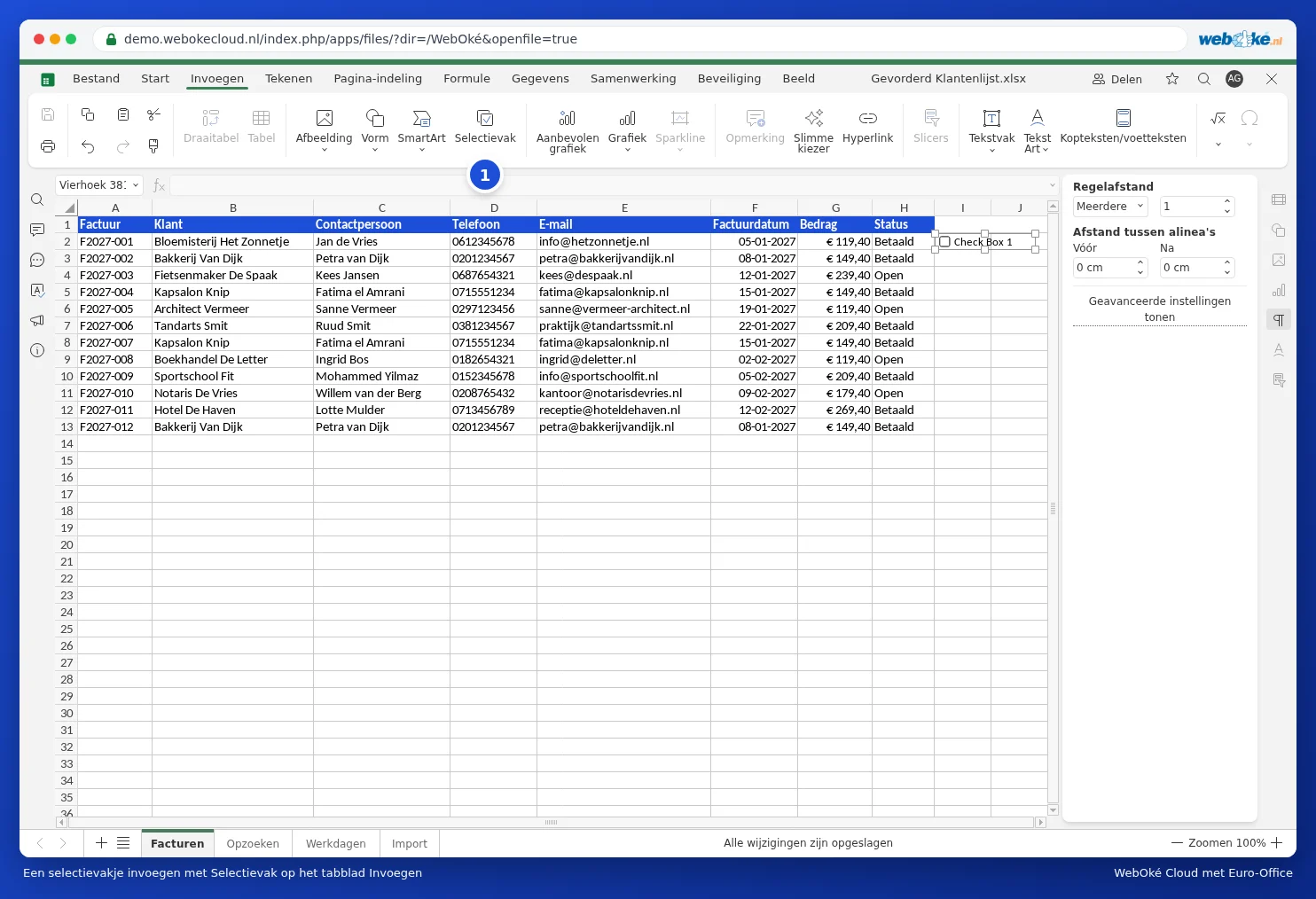
A to-do list, checklist or attendance list with boxes to tick: you can do this in Euro-Office. On the Insert tab you'll find the Check box button.
Inserting a check box
- Click the cell where the box should appear, for example I2 in the Checked column.
- On the Insert tab, click Check box (1).
- A box appears in the cell. Click it to tick or untick it.
Calculating with the ticks
A check box is a small object that sits on top of the cell. If you want to calculate with the ticks, link the box to a cell: right-click the box and choose Link Cell. That cell returns TRUE when the box is ticked and FALSE when it's empty. You can then, for example, count how many are done: =COUNTIF(J2:J13,TRUE), or use conditional formatting (see Colouring an entire row when the invoice is paid) to grey out a ticked row.
Pitfalls and alternatives
- Each box is a separate object. For a long list, copy the box and paste it into the other rows, then check the linked cell for each box afterwards.
- If you sort the list, the boxes don't always stay neatly with their row. For lists you sort or filter often, a drop-down list is more practical: use Data Validation to create a list with Yes;No or ☐;☑ (see Data validation and drop-down lists). That value is actually stored in the cell and moves with it when sorting and filtering.
- Check boxes from Excel stay visible when opened in Euro-Office.