
Chapter 15 · 15.14
Calculating working days between two dates, excluding public holidays
How many working days do you have for a task? When does a ten working day payment term expire? Simply subtracting the dates also counts weekends and public holidays. There are special functions for that.
Working days between two dates
- Put your public holidays in a list, in the example in F3:F10 (New Year's Day, Easter, King's Day, Liberation Day, Ascension Day, Whitsun and Christmas).
- If the start date is in B3 and the end date in C3, type in D3: =NETWORKDAYS(B3,C3,$F$3:$F$10).
- Drag the formula down. The dollar signs keep the public holidays list in place.
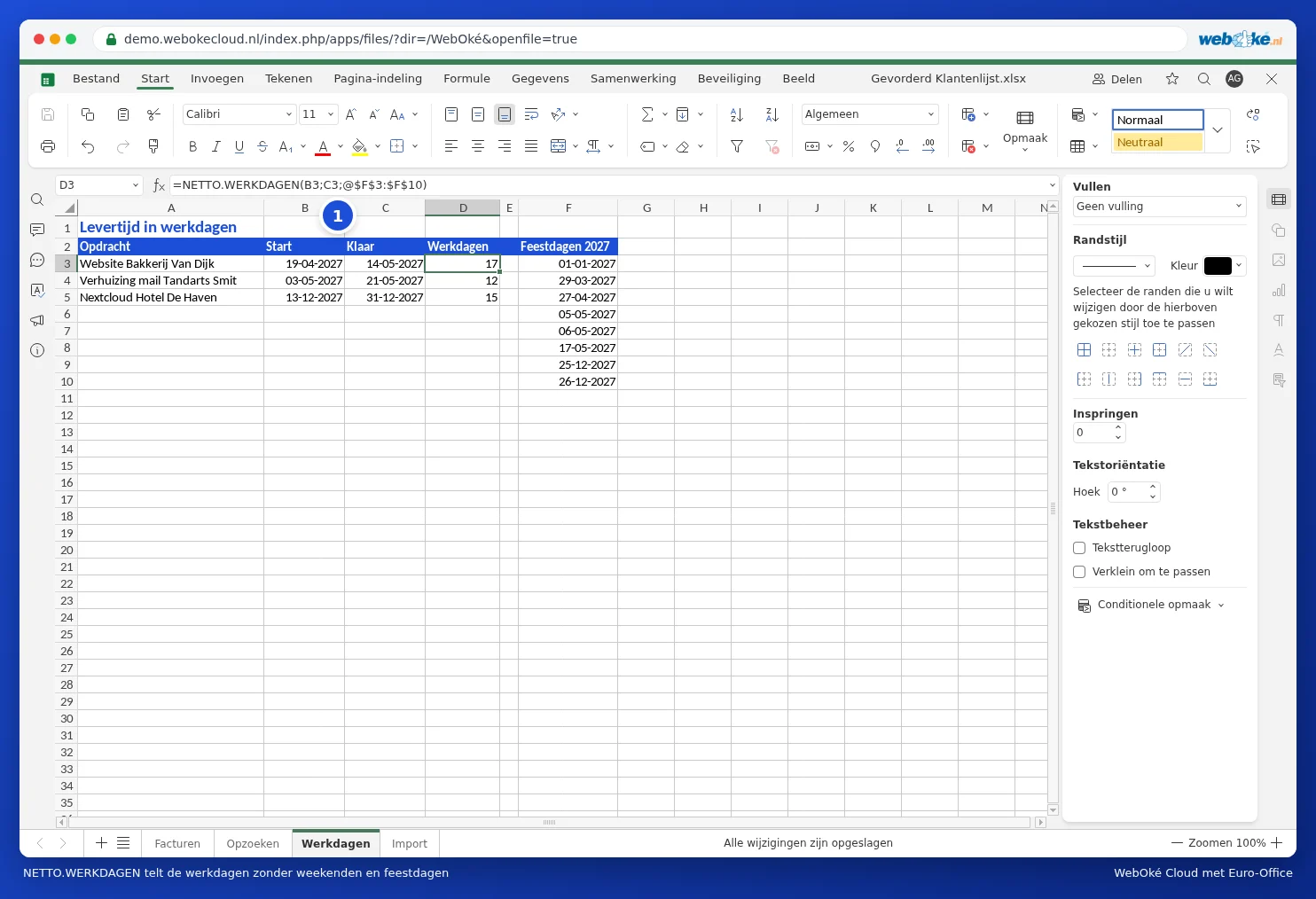
In the example: from Monday 19 April to Friday 14 May 2027 there are 20 weekdays. King's Day and the two public holidays in the week of 5 May drop out: 17 working days.
A date a number of working days ahead
The final payment date, ten working days after the invoice date in F2: =WORKDAY(F2,10,Feestdagen!$A$2:$A$10). Give the cell the Short Date format.
A different working week
Do you, for example, work from Tuesday to Saturday? Then use NETWORKDAYS.INTL. The third part is a seven character code for Monday to Sunday, with 1 for a day off: =NETWORKDAYS.INTL(B3,C3,"1000001",$F$3:$F$10) for days off on Monday and Sunday.
Pitfalls
- NETWORKDAYS counts both the start and end date. If you want "the number of days in between", subtract 1.
- If the dates are stored as text, you'll get #VALUE!. See Dates that come in as text or have day and month swapped.
- In the formula bar, Euro-Office sometimes places an @ before the public holidays range (…,@$F$3:$F$10). That's part of how Euro-Office displays the formula, the result is simply correct.
- Ordinary calendar days between two dates: =C3-B3, with the Number format.