
Chapter 5 · 5.1
Your domain summary
Watch it in a short video
All your domain names are gathered together in My Domains. Click My Domains in the menu on the left. You'll then land on the Summary tab.
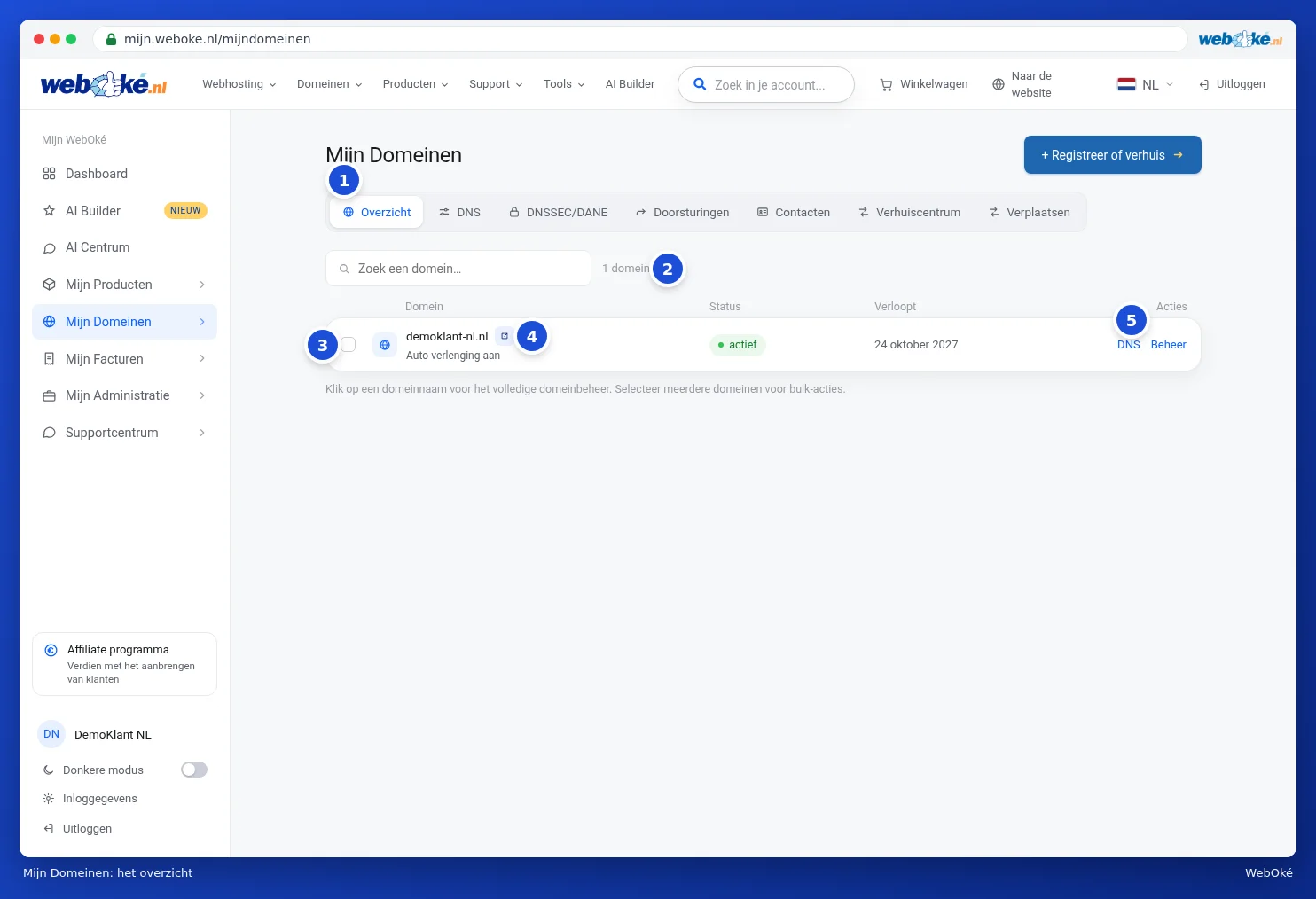
What do you see on this page?
- The tabs (1): Summary, DNS, DNSSEC/DANE, Forwarders, Contacts, Transfer centre and Move. Each tab has its own article in this chapter.
- Search a domain: type part of the name and the list filters straight away. Next to it, you'll see how many domains you have (2).
- The checkbox for each row (3): use this to select domains for an action on several domains at once.
- The domain name: underneath, you'll see whether auto-renewal is on or off. The small icon next to the name (4) opens the domain's website in a new tab.
- Status and Expires: whether the domain is active and until when it runs.
- Actions (5): DNS takes you to this domain's DNS records, Admin to the domain page.
Click a domain name or Admin for everything about that one domain. You can read about that in The domain page: everything about one domain.
Editing several domains at once
Got a lot of domains? Tick the box next to the domains you want to edit. A blue bar appears at the top with the number of selected domains and these buttons:

- Auto-renewal on (1): the domains are automatically renewed every year.
- Auto-renewal off (2): the domains will no longer be renewed and will expire on their end date.
- Edit nameservers (3): set the same nameservers for all selected domains. See Edit nameservers.
- Link contact (4): link one of your contact profiles as the holder to the domains. See Domain contacts and changing the owner.
Use Deselect to remove all the ticks again. You can't select a domain that isn't active, for example because the transfer is still in progress.
Please note: turning off auto-renewal is the same as cancelling. The domain will then expire on its end date and can be registered by someone else afterwards. Read Renewal and auto-renewal first.
Registering or transferring a new domain
Use the + Register or transfer button in the top right to go to the domain search tool on the website. You can read how that works in Finding and choosing a domain name and Transferring a domain to WebOké (transfer code or transfer later).