
Chapter 4 · 4.2
The menu, search bar and quick menu (Ctrl+K)
Watch it in a short video
In My WebOké, there are three quick ways to get where you need to be: via the menu on the left, via the search bar at the top, or with the quick menu on your keyboard.
The menu on the left
The My WebOké menu is always shown on the left:
- Dashboard: your start page, see The dashboard.
- AI Builder: have your website built by AI, see AI Builder: having your website built for you.
- AI centre: your conversations with the AI assistant, see The AI centre and your conversations.
- My Products: your hosting, email packages, Nextcloud and site builders, see Your product overview.
- My Domains: your domains, DNS, forwarders and the transfer centre, see Your domain summary.
- My Invoices: your invoices, credit balance and direct debit, see Viewing and downloading your invoices. The number next to this menu item is the number of outstanding invoices.
- My Administration: your details, contacts, login details, users and more, see Changing your details and invoice address.
- Support centre: tickets, knowledge base and help, see The support centre.
Is there an arrow next to a menu item? Then hover over it with your mouse. A submenu opens with the different parts. For My Domains (1), for example, you'll see Summary, DNS, Forwarders, Domain contacts, Transfer centre, DNSSEC/DANE and Move domains (2). If you click the menu item itself, you'll go to the summary.
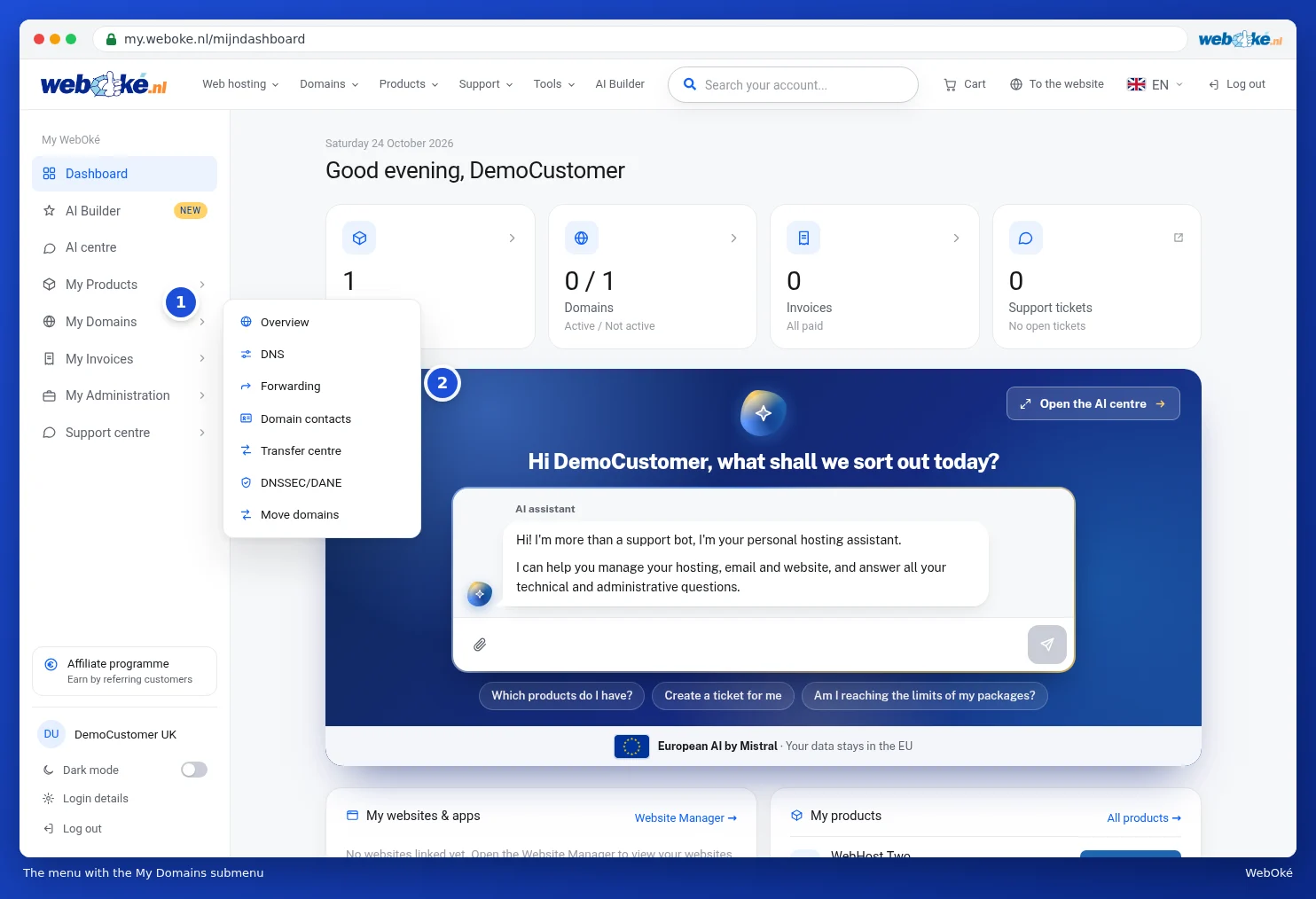
Below the menu, you'll find the Affiliate programme (only for the account owner, see Becoming an affiliate and sharing your referral link) and the block with your account, see Multiple accounts: switching between accounts.
Tip: on a phone, the menu is collapsed. Tap the button with three lines in the top left to open it.
The bar at the top
At the top is the website menu, including Web hosting, Domains, Products, Support and Tools. This way, you can order something or look up a tool without leaving My WebOké. On the right, you'll find the Cart, To the website, the language selector (see Language, dark mode and the tour) and Log out.

Searching your account
With the Search your account... field (1), you search everything at once: your products, domains, invoices, tickets, the pages of My WebOké and the knowledge base.
- Click the search field at the top.
- Type a few letters, for example part of your domain name or an invoice number. If you type more than one word, they all have to appear.
- The results appear immediately below the field, grouped by type. Click a result to go to it.
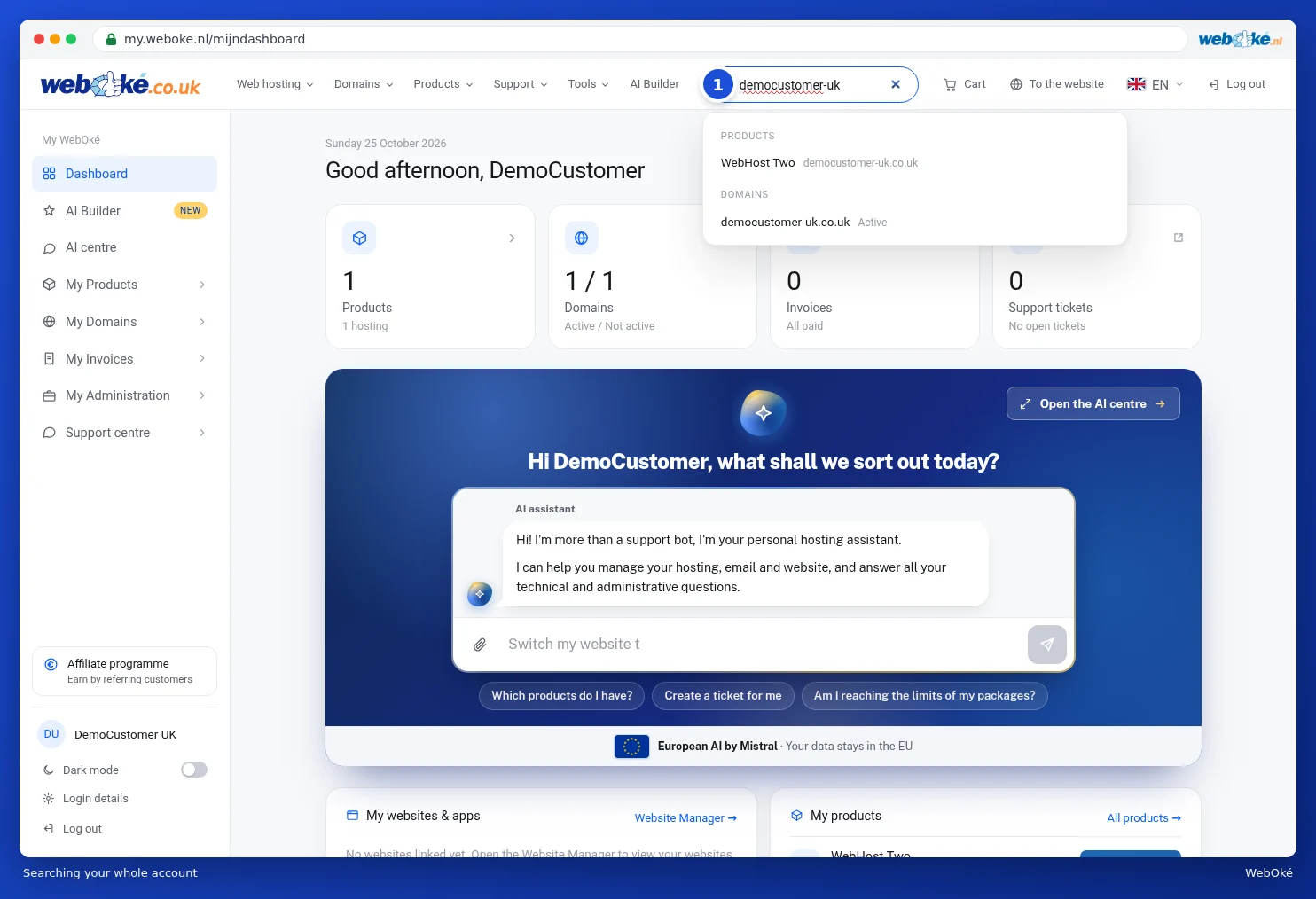
You'll only see what belongs to your account. If you're working as a user in someone else's account, you'll only see the parts you have rights for.
The quick menu (Ctrl+K)
Prefer working with the keyboard? Then press Ctrl + K anywhere in My WebOké. On a Mac, that's Cmd + K. A window opens with all the pages of My WebOké.

- Type part of the page name, for example inv for invoices.
- Use the arrow keys ↑ and ↓ to choose a page and press Enter. You can also click.
- Press Esc to close the quick menu.

The quick menu only searches page names. If you're looking for a specific domain or an invoice, use the search bar at the top instead.