
Chapter 8 · 8.2
AI Builder: editing, versions and publishing
In the build screen, you edit your website. You can do this in two ways: tell the AI in the chat what needs to change, or edit a text yourself in the preview. Every change becomes a version, so you can always go back. Visitors only see your site once you click Publish.
Opening the build screen
Go to AI Builder in the menu on the left. Below the start card are your websites (1), with the status Draft or Online. Click Open in the builder (2) to continue working on it. The bin icon (3) deletes a website, along with all versions and photos. You cannot undo this. On the right, you see how many edits you have left and how much space is in your packages.

What the build screen looks like
- On the left is the rail (1) with all the sections: Chat, Pages, Blocks, Media, Menu, Articles, Style, Security and SEO, and at the bottom Memory, Versions and Settings.
- Next to it is the panel for whatever you select in the rail. By default, this is the chat, with the input field at the bottom (2).
- On the right is the preview of your site (3). This is your actual site, as visitors see it.
- In the bar at the top: Add block (4), the buttons to view your site as a computer, tablet or phone (5), your edits (6) and Publish (7). Use My websites in the top left to return to the overview.

Having something changed in the chat
- Type in the input field (1) what needs to change, in plain words. For example: add a block with our opening hours to the homepage. You can also click one of the examples above the input field.
- Is it about one specific part? Click Pick a section below the input field, then click that section on the right. The AI will then change exactly that part.
- Next to the paperclip, you see the cost in advance, for example Small edit · 1 edit. Asking a question costs nothing.
- Send your message with the arrow in the bottom right or with Enter.

The AI creates a proposal. At the top of the preview, you then see You are looking at a proposal. Nothing has changed yet. Use Current and Proposal to switch between the old and new version.
- Apply (1): the proposal becomes your new version.
- Different: you tell the AI what else needs to change and it adjusts the proposal.
- Discard: the proposal disappears and your site stays as it was.

Editing a text yourself, without AI
In the preview, hover your mouse over a text or button and click Edit. You then type the new text yourself. This is always free. Click a photo to choose a different one or have one made.

What does an edit cost?
Click the button at the top with the star and the number of edits. You see how many you have left, when your new monthly bundle arrives and whether you can buy more. Extra edits you buy always stay valid. Under What does an edit cost?, you find the details:
| Costs edits | Always free |
|---|---|
| Have something changed: 1 | Editing text yourself |
| New block or design: 2 | Changing the style |
| Logo, three proposals: 1 | Moving blocks |
| Have a new photo made: 1 | Asking questions |
| Have an article written: 1 | Publishing |
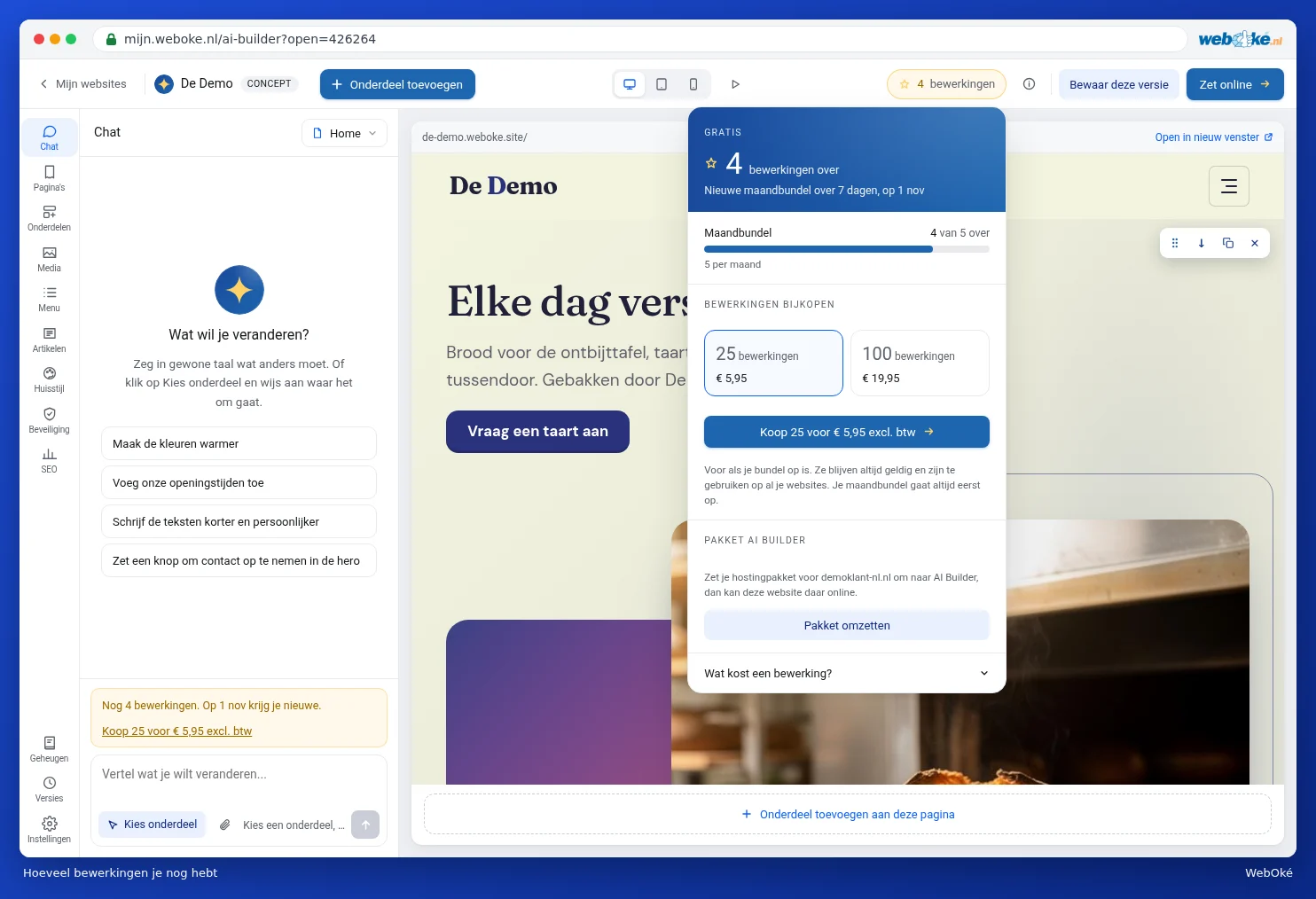
Do you have a hosting package for a single domain? Then this window also shows Convert package. With the AI Builder package, you get edits every month and you put your website on your own domain.
Pages, style and settings
Click Pages (1) in the rail for all the pages of your site. Use the pencil icon to edit a page, or Add page to create a new one.

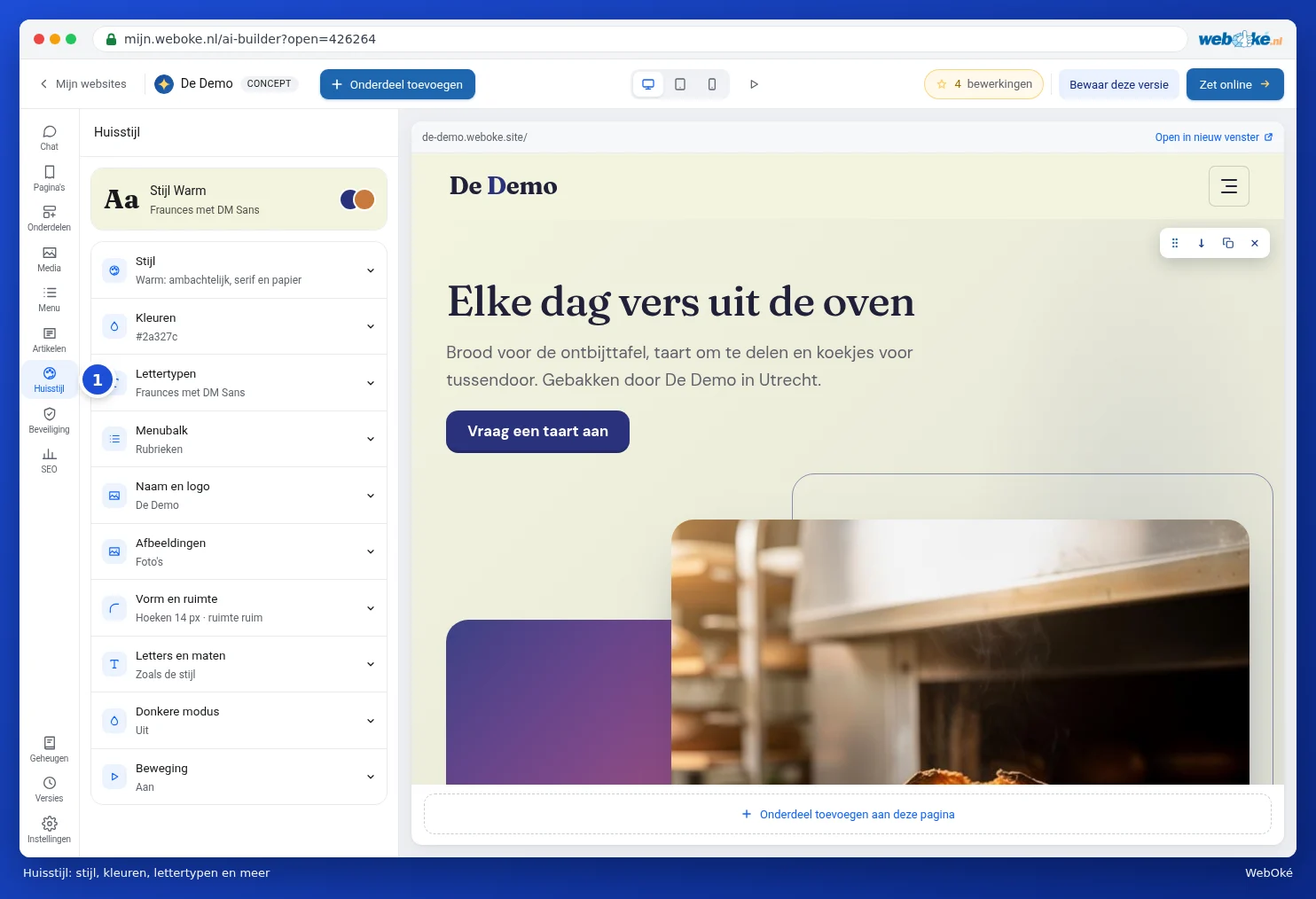
Under Style (1), you manage the style, colours, fonts, menu bar, name and logo, images, shape and spacing, letters and sizes, dark mode and motion. Changing the style is free.
Under Settings (1), you find Cookies and consent, Integrations, Forms, Buttons and Languages. Under Forms, you set which email address receives messages from your contact form. Does your site collect visitor data, for example through a form? Then you also see a notice here to create a privacy statement, with the Create privacy statement button.

Versions: nothing gets lost
Click Versions (1) in the rail. Every change is a version, with the date and time. Click a version to view it. Use Revert to restore an older version. Reverting doesn't lose any versions: you can still go back to the newest one afterwards.

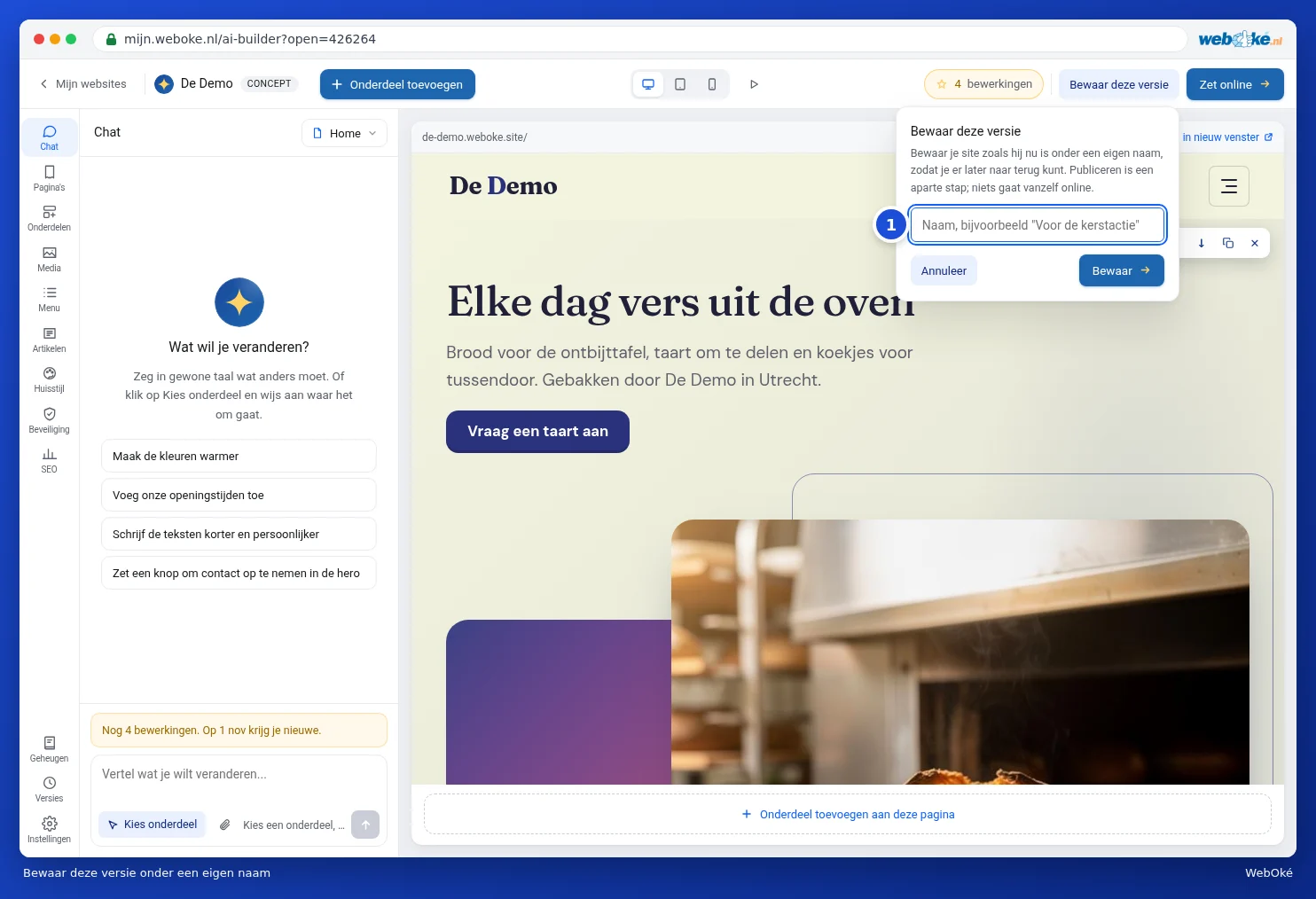
Want to easily find a version again, for example for a promotion? Click Save this version at the top, give it a name (1) and click Save. Saving doesn't publish anything; publishing is a separate step.
Publishing your site
- Click Publish in the top right.
- Choose where your site will be hosted. On the free WebOké address, it goes online for free and permanently, with the restrictions you read above for the free website. In your own hosting package, the site goes on your own domain. For this, you need the AI Builder package; use Convert package to convert a hosting package.
- Click Publish in the window. Use Cancel to close the window without changing anything.
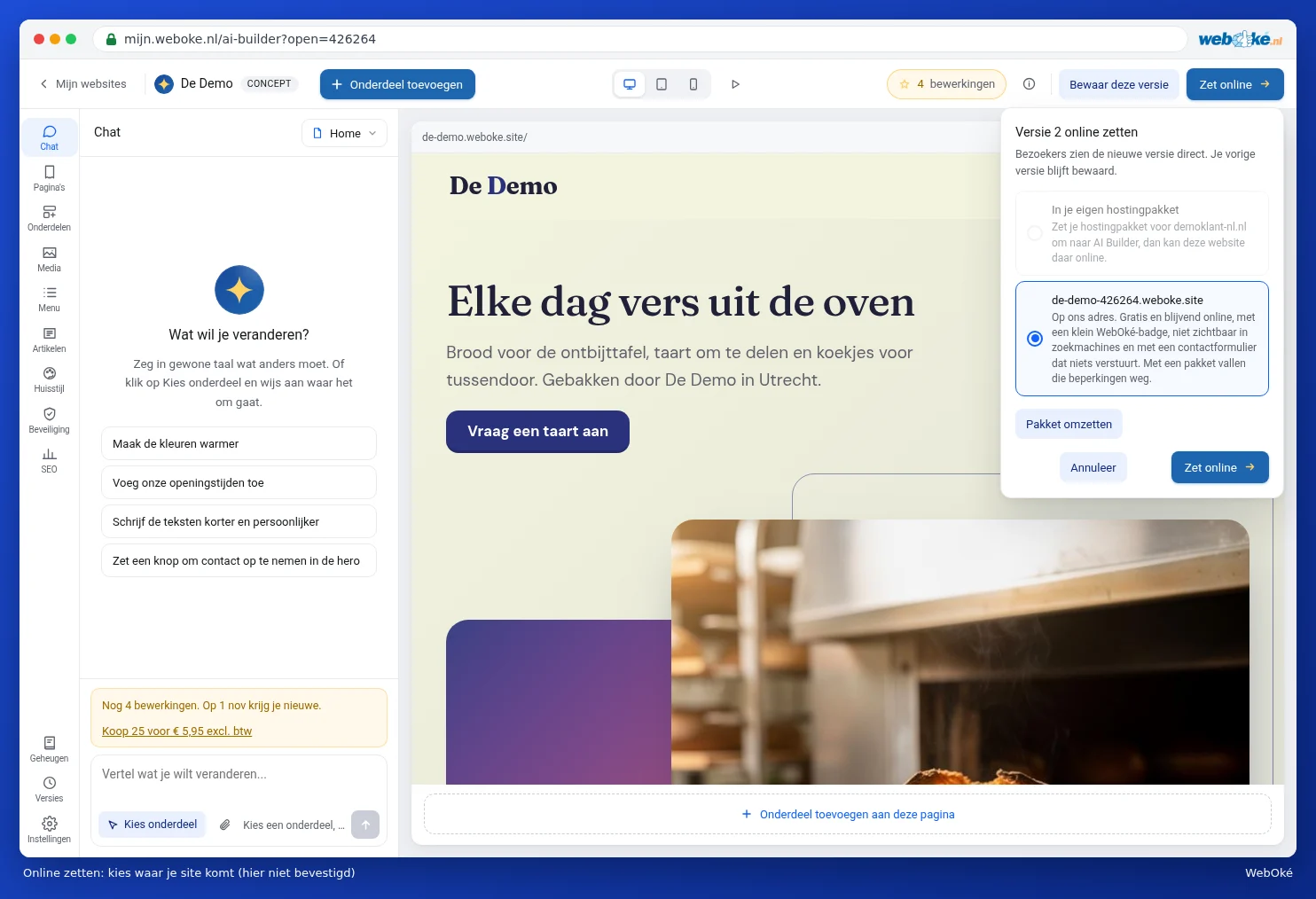
Once your site is online, the button is called Publish changes. Everything you edit afterwards is only visible in the builder at first. Your visitors only see it once you click Publish changes. If you want to take your site offline again, you can also do that in this window. Your site itself stays saved as it is.
Please note: if your site goes into a hosting package, it ends up in the web folder of that domain. Files with the same name will be overwritten. If another website is currently on that domain, make a backup first. See WebOké Backups: restoring files.
Help in the builder
At the top is a button with an i. This opens Help and tour: explanations per feature and the tour from the very beginning. You can also simply ask the AI in the chat; asking a question costs nothing.