
Chapter 9 · 9.2
Managing users and Office licences
With a paid Nextcloud package, you manage your users directly in My WebOké. You don't need to log in to Nextcloud to do this. Changes are saved immediately.
Adding a user
- Go to My Products and open your Nextcloud package.
- On the User management card, click Add user. The New Nextcloud user window opens.

- Enter a Username (1). This is what the user will log in with. Use lowercase letters, numbers, a dot or a hyphen. You can't change the username later.
- Enter the Display name and the Email address.
- Choose a Password (2) or click Generate. The password must be at least 10 characters long, with at least one number and one special character, for example ! or #. Don't use the user's name or email address in the password; this will be rejected. Share the password with the user securely.
- Does the user need to be able to edit documents, spreadsheets and presentations online? Tick Assign Office Suite licence (3).
- Click Create user (4). Click Cancel to close the window without doing anything.
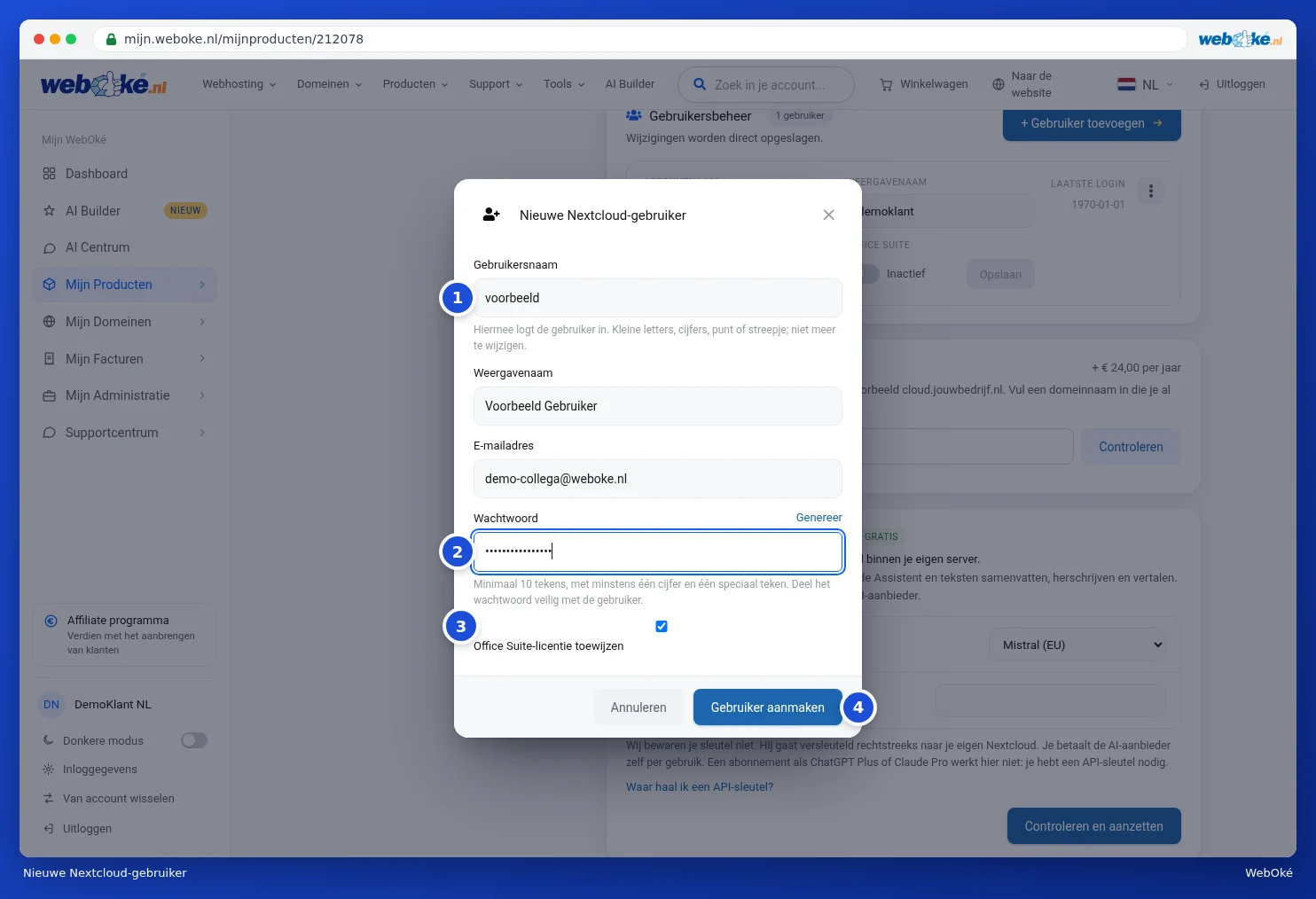
If the user is created successfully, the window closes and the new user appears in the list. The number next to User management and the Nextcloud users counter both increase by one.
The new user automatically gets the storage space included in your package. If you've reached the maximum number of users, you can't add any more. In that case, first increase the number under Configurable options (see below).
Editing a user
Each user appears as a block in User management, showing the Account name (1), the Display name, the Email address, the Last login and whether Office Suite is switched on (2). The button with the three dots is in the top right (3).

- You can edit the Display name and Email address directly in the row. Then click Save.
- Use the Office Suite switch to assign or remove an Office licence for the user. Next to the switch you'll see Active or Inactive.
- Behind the three dots (1) you'll find Change password, Disable (or Enable) and Delete.
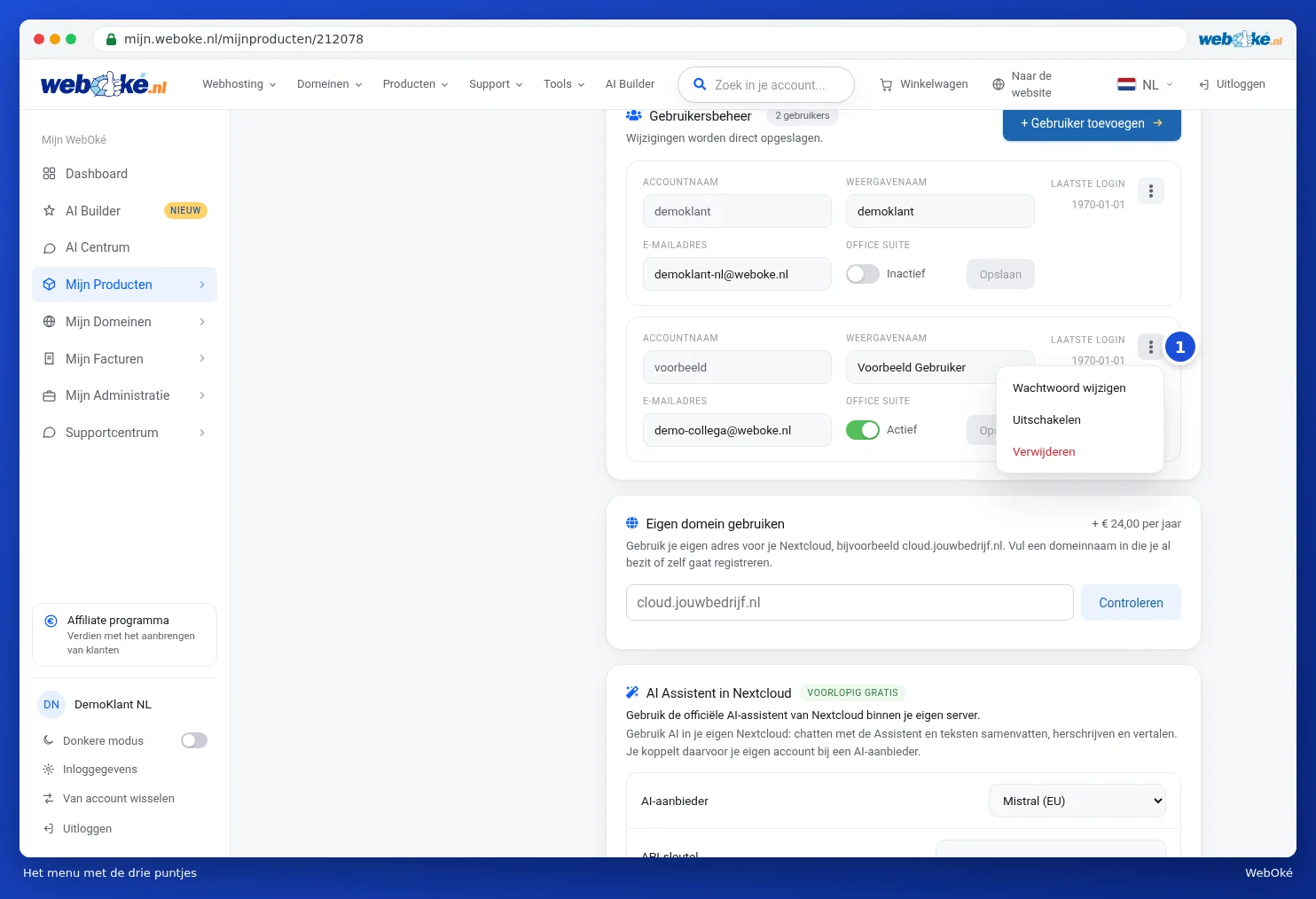
If a user has never logged in, a date in 1970 is shown under Last login. This means they haven't logged in yet.
A disabled user can no longer log in, but their files are kept. You'll see the Disabled label next to them.
Please note: if you delete a user, all their files, calendars and contacts are permanently deleted. This can't be undone. You'll first see the Delete user window; the user is only removed once you click Yes, delete permanently (1). If you're not sure, click Cancel and disable the user first instead.

Office licences
With an Office licence, a user can open and edit documents, spreadsheets and presentations online in Nextcloud, including Word, Excel and PowerPoint files. Users without a licence won't see the office apps. You can assign a licence when creating the user, or later using the Office Suite switch.
Are all your licences in use? Then switch off Office for someone who doesn't need it, or buy extra licences via Configurable options. You can read how to work with the office apps in the Euro-Office manual.
Tip: if an update is ready for your Nextcloud, you'll see a card with the new version at the top of the product page. If you have an Office licence, this update also switches you over to Euro-Office, the European online office. Start the update whenever suits you; it usually takes 5 to 15 minutes. Only the account owner can start this update.
More users, licences or storage
- On the product page, go to Configurable options.
- Choose the storage (1) or the number of Office licences you want. The cost is shown for each option.
- Click Save options (2) and then Confirm and pay.
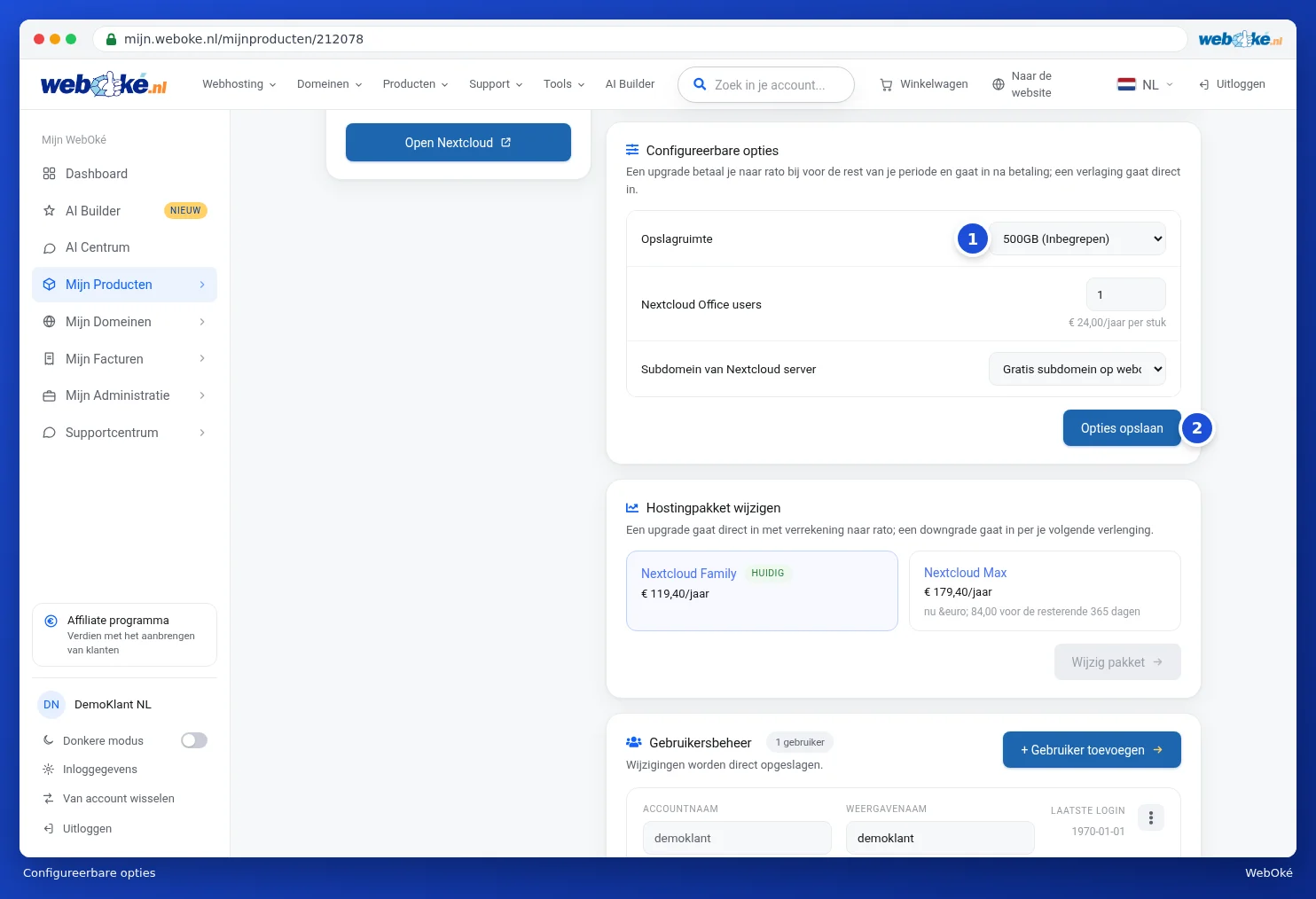
You pay pro rata for an upgrade for the rest of your period, and it takes effect after payment. A downgrade takes effect immediately. You can read more about options in Changing options and extra IP addresses.