
Chapter 1 · 1.7
Skin Options: light or dark, display and more
With Skin Options, you set how DirectAdmin looks for you: light or dark, the language, how dates are displayed and a few handy settings for tables and File Manager.
Opening Skin Options
- Click Hello, followed by your username, in the top right.
- Choose Skin Options.
This takes you to your profile, on the Skin Options tab. You can also go via Profile and click the tab there.

Appearance
- Color Scheme (1): choose a light or dark display. With Follow System Theme, DirectAdmin follows the setting of your computer or phone: if it switches to dark in the evening, DirectAdmin will go dark too.
- Language (2): the language of DirectAdmin. You can also change this with the language button in the top right, see Changing the language of DirectAdmin.
- Date & Time settings (3): how dates are displayed. Choose Use system default (automatic, based on your browser settings) for your browser's notation, or Edit to choose a notation yourself. Under Date & Time Preview, you'll immediately see what it looks like.
After making changes, click SAVE below the section.

Tables
This section contains settings for the tables in DirectAdmin, such as how many domains are shown in a table by default (User Domains) and whether values above a limit are highlighted (Overuse Highlight). You usually don't need to change anything here. Use Reset to return the section to its default settings.
File Manager
This section is useful to know about:
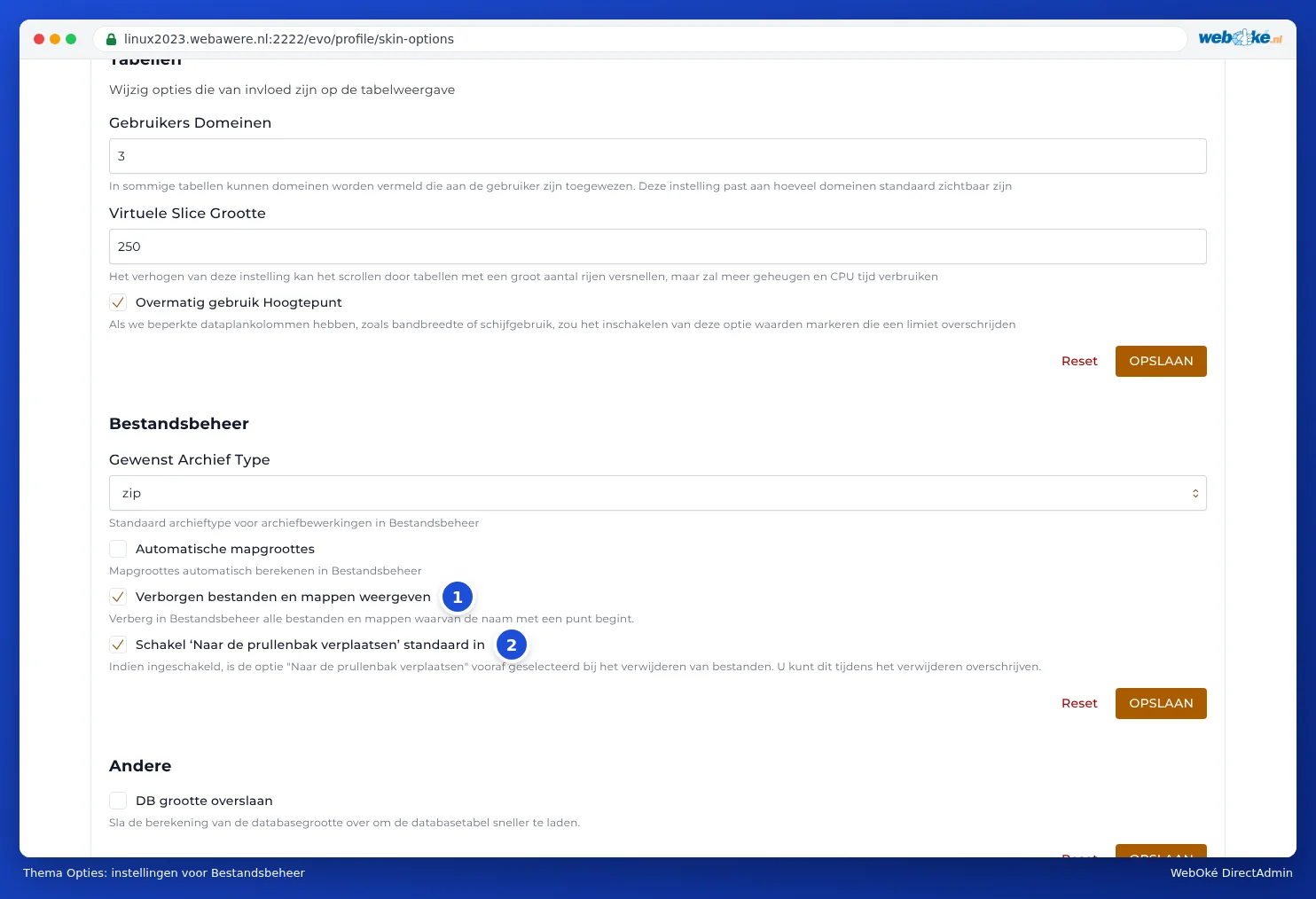
- Preferred Archive Type: whether File Manager creates a zip or another archive type by default when you compress files.
- Automatic directory sizes: shows how large each directory is. Useful if you're looking for where your space is going, but it makes large directories slower to load.
- Show hidden files and folders (1): determines whether you see files whose name starts with a dot, such as .htaccess. If the checkbox is ticked, you'll see them in File Manager. The explanation under the setting ("Hide ...") is translated a bit confusingly: pay attention to the checkbox itself. See also Showing and editing hidden files such as .htaccess.
- Enable 'Move to trash' by default (2): deleted files then go to the trash first, so you can still undo a mistake.
Other
Skip DB Size: the list of databases loads faster because the size isn't calculated. Only useful if you have many or large databases.
Tip: You can also choose between light, automatic and dark on the DirectAdmin login screen, using the three buttons in the top right (see Signing in directly on port 2222).