
Chapter 11 · 11.5
File and directory permissions (chmod)
Every file and every directory has permissions: who can read it, who can write to it and who can execute it. On Linux, changing this is called chmod. Usually you don't need to do anything with this. But if you get a 403 Forbidden error, or an installation asks for a specific permission setting, you can change it in File Manager.
Reading permissions
In File Manager you can see the permissions in the Permissions column, for example -rw-r--r-- or drwxr-xr-x. These characters are grouped in three: for the owner (you), the group and everyone else (public). An r means read, a w means write and an x means execute. A d at the start means it's a directory.
Permissions are often written with three digits:
| Digits | Characters | Used for |
|---|---|---|
| 644 | -rw-r--r-- | The standard for files: you can read and write, the web server can read. |
| 755 | drwxr-xr-x | The standard for directories (and for scripts that need to run, such as in cgi-bin). |
| 600 or 640 | -rw------- or -rw-r----- | Extra protected. Useful for a file containing passwords, such as wp-config.php, but not for regular pages, images and stylesheets: the web server won't be able to display them. |
| 777 | -rwxrwxrwx | Everyone can do everything. Never use this. It's insecure and unnecessary: your website runs under your own user, so 644 and 755 are enough. |
Changing permissions
- In File Manager, right-click the file or directory (you can also select multiple files).
- Choose Set Permissions.
- Under Quick permission presets (1), choose a standard setting. For a file these are Private file (600), Shared file (644) and Shared & Executable file (755); for a directory Private directory (700) and Shared directory (755).
- Or set it yourself in the Advanced permission editor (2): type the digits, or tick Read, Write and Execute for each group (Owner, Group, Public).
- Click SAVE.
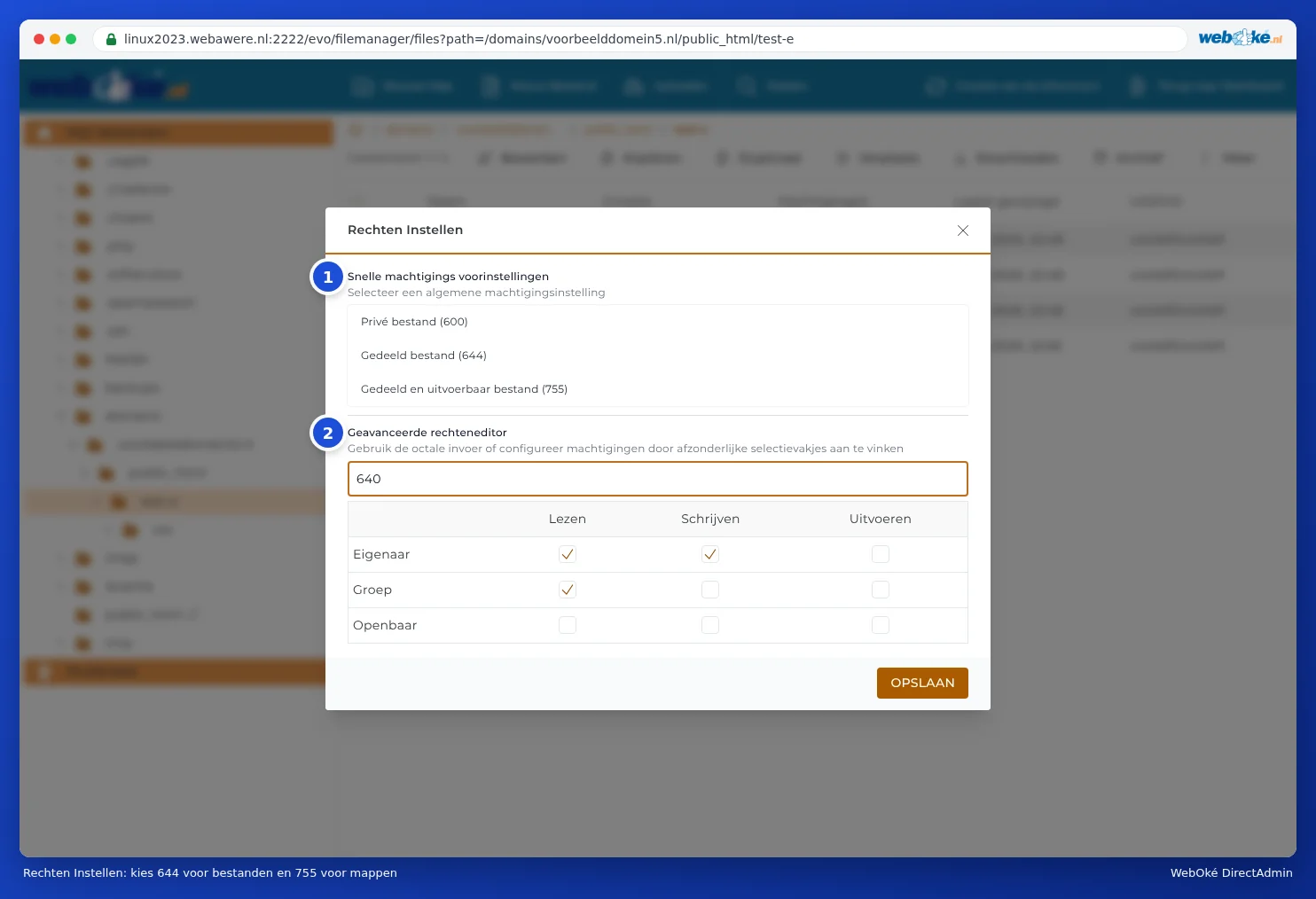
Tip: For regular files, choose Shared file (644), and for directories, choose Shared directory (755). This solves most permission problems.
When do you need this?
- 403 Forbidden or 404 error after uploading or extracting: the files are set to 600 or 640, or a directory to 700 or 750. Set files to 644 and directories to 755. In our example from Extracting and creating zip files, the extracted index.html (640) gave a 403 error, and the stylesheet in the css directory (750) couldn't be found. After changing them to 644 and 755, everything worked.
- A plugin or installation can't write to a directory, for example the upload directory. First check whether the directory actually belongs to you (UID/GID column) and is set to 755. Never set a directory to 777.
- A script in cgi-bin doesn't work: set it to 755.
Please note: Changing permissions for a whole directory doesn't automatically apply to everything inside it. Do you need to change hundreds of files, and do you have a package with SSH (Power Webhost Three and Four, AI Wordpress Three and Power Reseller)? Then it's faster to do this in the Terminal (see Terminal in your browser). Otherwise, support will be happy to help.